I like it very much and its monthly fee is within everyone's reach. It is the best thing about this application.

Holguer GómezRating on Play Store
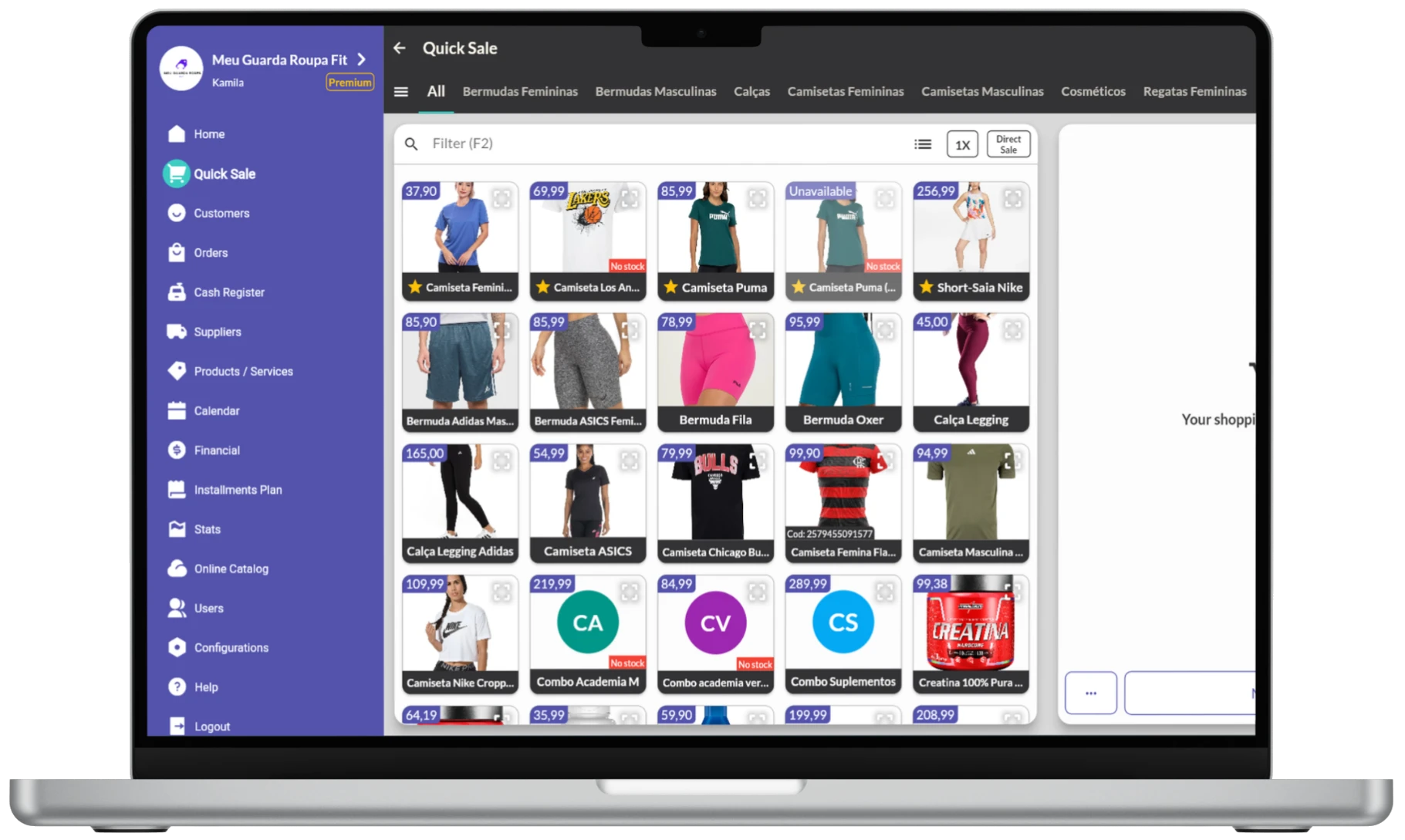
A lot of people ask whether Licera works on a computer. It does, and that is exactly what Licera Web is for. It is the same account and the same data as the app, open in the browser on your PC, laptop, or Mac. There is nothing to install: go to web.uselicera.app and start using it.
Nothing to install. No extra cost.
Three steps and less than a minute. Licera Web is already included in your plan.
Go to web.uselicera.app in Chrome, Edge, Firefox, or Safari. There is no program to download and no installer to run.
Use the same email and password as the app. If you do not have an account yet, you can create one for free on the same screen.
Your products, customers, sales, and finances are already there. Nothing to migrate: it is the same account you use on your phone.
Nothing to install. No extra cost.
A computer fits far more information at once: your product list, the day's orders, and your reports all show up in full. Checking inventory and closing the register gets much faster than on a phone.
See how inventory control works →Typing names, prices, and codes on a keyboard speeds up the initial catalog setup and the day-to-day fixes. It is the fastest way to get Licera running when you are starting out.
Learn more about product registration →Keep Licera Web open on the checkout computer and register sales right there, without picking up your phone for every customer.
Explore the POS system →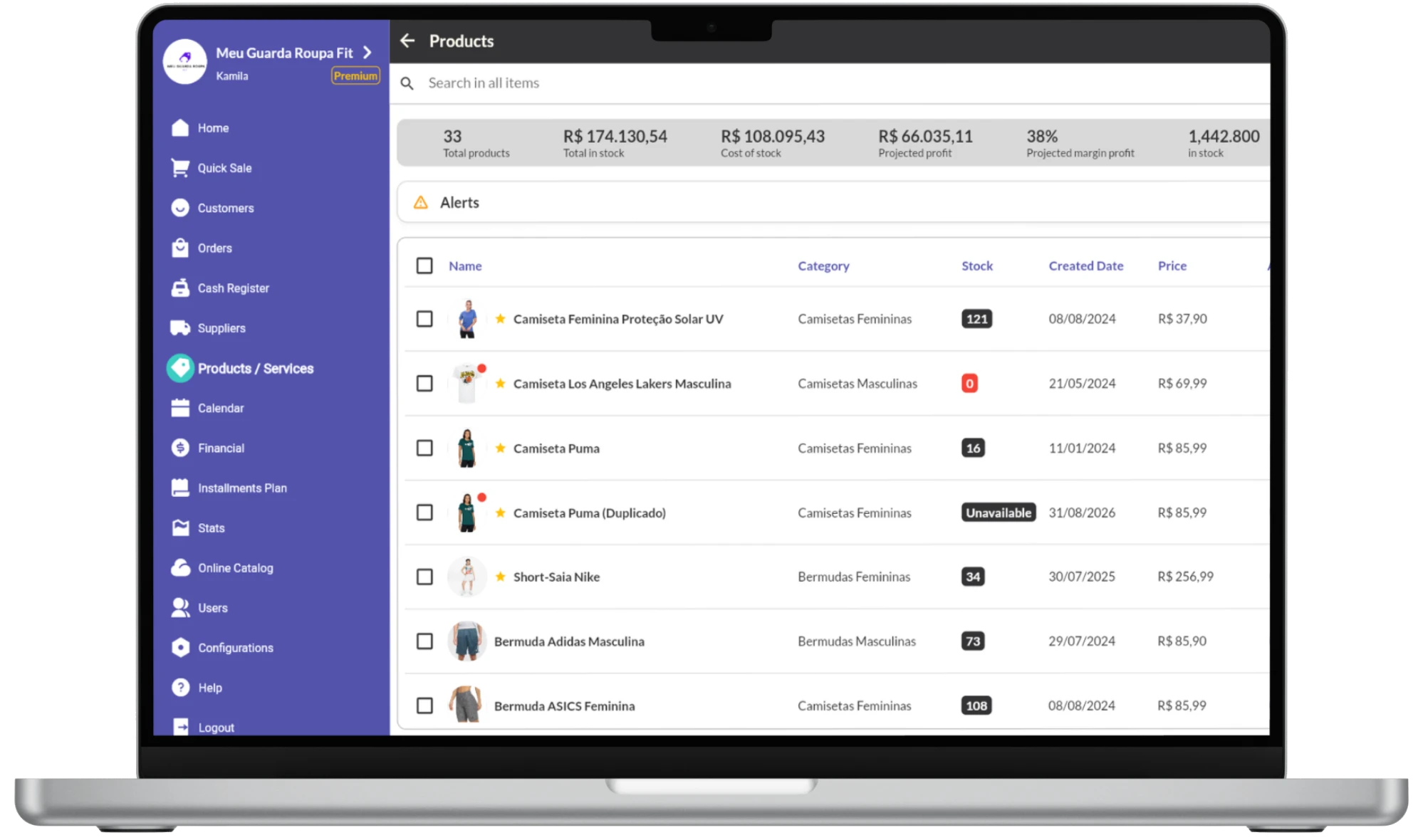
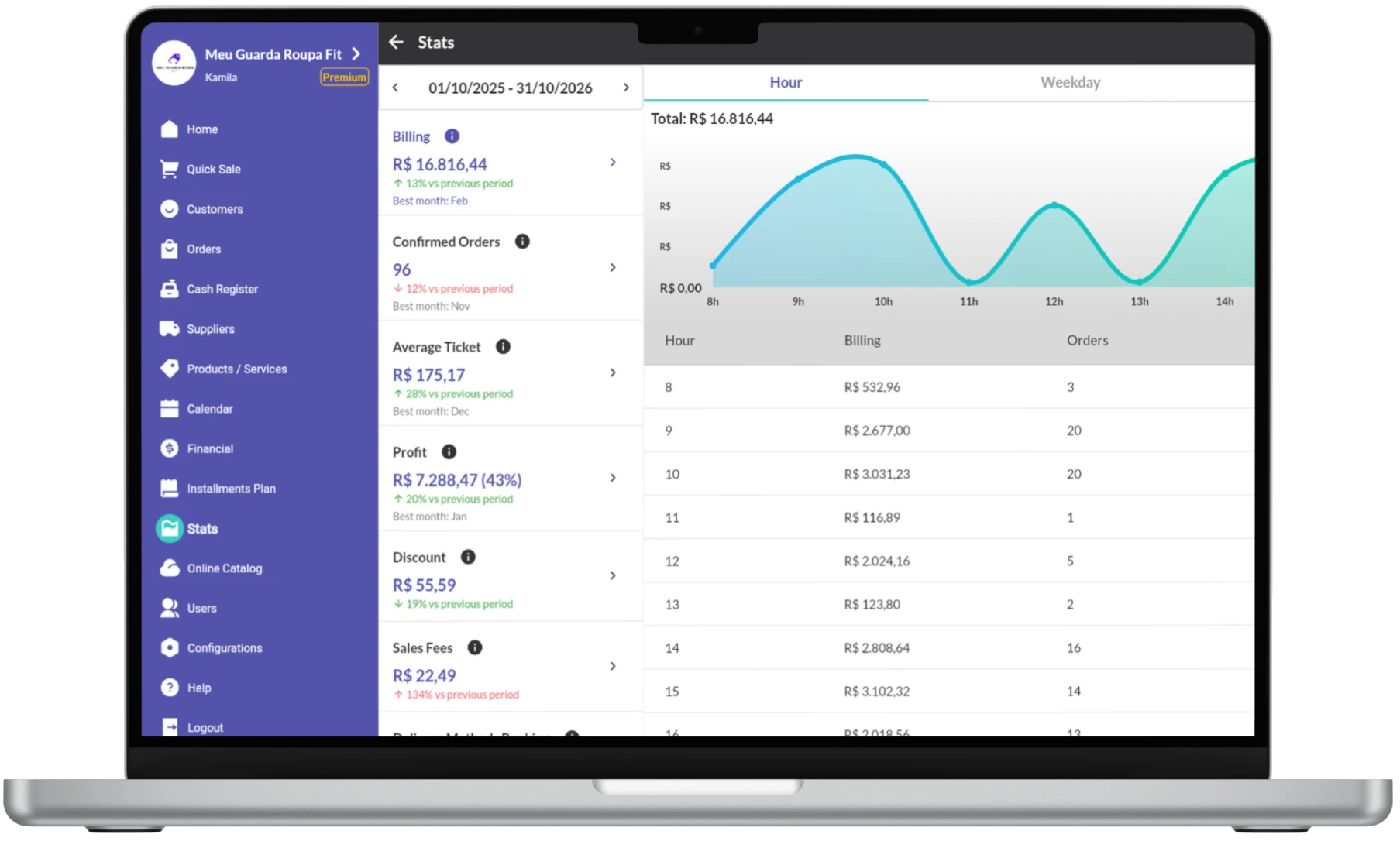
Licera Web is not a separate product or a second subscription. It is the same Licera from your phone, open in the browser: whatever you record in one shows up in the other.
See how sales management works →While someone serves customers with a phone in hand, another person checks inventory or reviews the finances on the computer. Each person signs in with their own user.
Learn more about financial control →Using Licera on a computer costs nothing extra. Web access is part of the plan you already have, free or paid.
See the plans →Because everything happens in the browser, your computer's operating system does not matter. There is no version to install per system, and no update for you to download.
Explore every Licera feature →Use the browser already on your computer. Keeping it up to date is worth it for every feature and the best performance.
See the online catalog →From Chrome or Edge you can create a Licera Web shortcut on your desktop and open the system with one click, as if it were an installed program.
See the digital menu →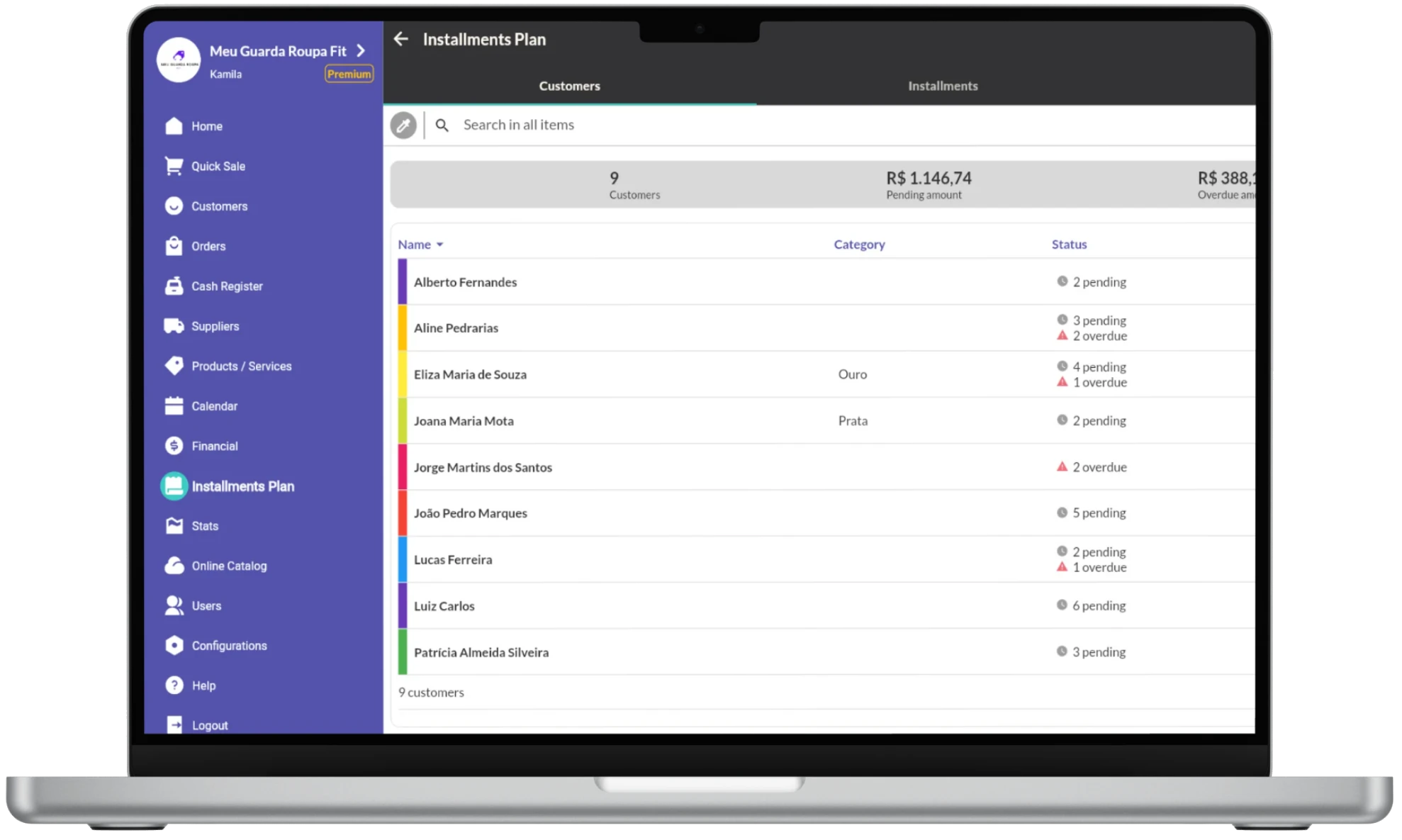
Hear from shop owners who already got their business organized with us.
After searching a lot for an app. Cheap, but really delivers everything I need, and serves all types of products and services, and better! The administration and updates of the app are direct, support is incredible, always helping and improving the app, according to our demand, they are of congratulations Licera Team 🤝

I couldn't find a better app to manage a small business. It has everything! And it's hard to believe in the value of the paid plan, it's worth it... I'm not going to leave anymore 🤩

Great app! For some time I was looking for an app that was easy to use and at the same time helped me optimize my time and organize my agenda, appointments and even my stock. I found everything in one app, I'm very happy and satisfied. I recommend to all entrepreneurs who need practicality to organize their business.

For small businesses and entrepreneurs.
Yes. Licera has a web version, Licera Web, made precisely for people who want to use the system on a computer. Just open web.uselicera.app in the browser on your PC, laptop, or Mac and sign in with your account.
No. Licera Web runs directly in the browser, with no installation and no download. If you prefer opening it with one click, you can create a desktop shortcut from Chrome or Edge itself.
Licera for Windows is Licera Web. Instead of a program to install, you reach the system through the browser, which removes manual updates and works the same on Windows, macOS, Linux, and Chromebook.
No. Computer access is included in the plan you already have, free or paid. There is no separate subscription for the web version.
Yes. It is the same account and the same database. Products, customers, sales, and finances entered in the app appear in Licera Web, and what you do on the computer appears on your phone.
Yes. You can keep Licera Web open on the checkout computer while your team uses the app on their phones, each person with their own user.
Yes. Because everything happens in the browser, Licera Web works on Mac, Windows, Linux, and Chromebook, with no specific version for each system.
Chrome, Edge, Firefox, and Safari all work well. What matters is keeping the browser up to date so you get every feature and the best performance.
Browser access needs a connection to load and sync your data. If the internet at your business tends to drop, keep the mobile app as a backup so service does not stop.
Open web.uselicera.app in your computer browser and enter the same email and password you use in the app. If you do not have an account yet, you can create one for free on the same screen.
© Licera 2026, all rights reserved
Jarbas Software e Servicos LTDA - 53.732.154/0001-34 - Site Map